GENERAL
Interim version with only minor updates
As you can see in these release notes, this version includes only a few new features. In addition, a number of bug fixes and performance improvements have been implemented.
That doesn't mean we've been idle in the meantime. We are working on several larger new features, including new APIs and our first AI applications, which will be added in later versions. So be sure to keep an eye on the release notes.
CALCULATION
New shortcut: F4 or Ctrl + ' to duplicate a full line
Pressing Ctrl+' or F4 on a selected bill of quantities line will make that line take over all editable fields of the line right above it. At the calculation level, the same shortcut takes over all fields form the calculation line above it (resource or operation) in the same way.
Using the combination Ctrl+N > F4, you can quickly create a new line containing the same information as the line above it.
Fields that are not editable or not applicable (for the type of the selected line) will of course not be copied.
New shortcut: Alt + arrow keys to change the level of a calculation line
At the calculation level, the Alt+Arrow keys (up/down) can now be used to change the indentation level of a selected calculation line. Pressing Alt + up arrow moves the line one level higher, outside the operation it was under. Alt + down arrow moves the line one level lower, into the operation above it (if it wasn't already part of it). Previously, this could only be done by dragging the line. This shortcut can only be used when exactly one line is selected and when the action is possible for the position the line is in.
Sales price calculation: new column for the applied VAT%
A new read-only column VAT% (applied) has been added to the BOQ lines section in the sales price calculation screen. This read-only column always shows the VAT percentage that will be applied to a BOQ line - whether set at client level, BOQ line level or project level. While the existing column VAT% column only shows a value when it differs from the inherited percentage. The new column is hidden by default and can be added via the column chooser.
When a customer distribution applies and a different VAT percentage has been set for the different customers, the value in the applied VAT% column will display asterisks (***).
Excel Import Templates: additional fields for quantity and supplier
The Excel Import Templates functionality is an optional module, available at an additional cost, that offers the ability to import simple calculations, budgets, or budget changes from an Excel file. Contact your KPD consultant if you would like more information about this.
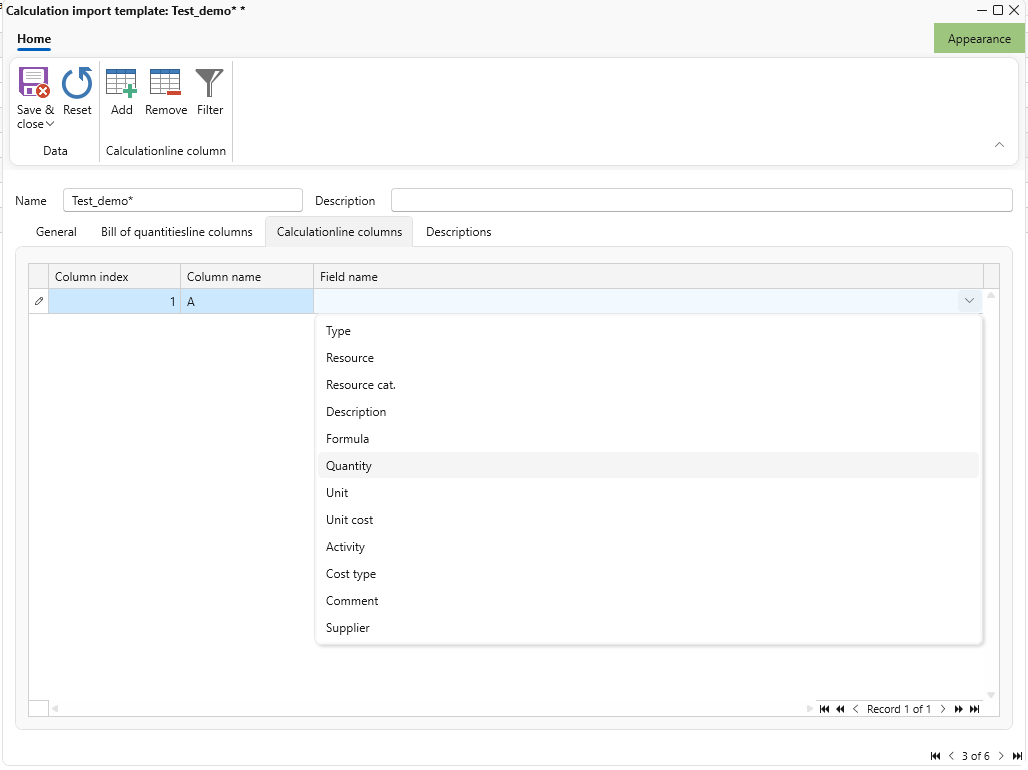
The Excel import with templates has been extended with two new import fields:
- Quantity: the "Quantity" field in the import template previously only referred to the quantity formula. It was therefore not possible to enter the resulting quantity directly. The old field has been renamed to "Formula" and a new "Quantity" field has been added, in which the correct resource quantity can be entered directly. When a quantity is imported, the corresponding formula is automatically calculated to achieve that quantity.
The Formula and Quantity import fields cannot be used together. If both are mapped, the formula takes precedence and the quantity is ignored. - Supplier: it is now also possible to import the Supplier field via the Excel import. This will always be imported as an ad-hoc supplier, without a link to the contacts library.