Release Notes vNext 2026.14
All the new changes - October 2026
PROJECTS
Project export and import: commercial codes and project type
When a project is exported to a .kpd file and imported into another environment or company, its project commercial codes and project type are now carried over as well.
Export
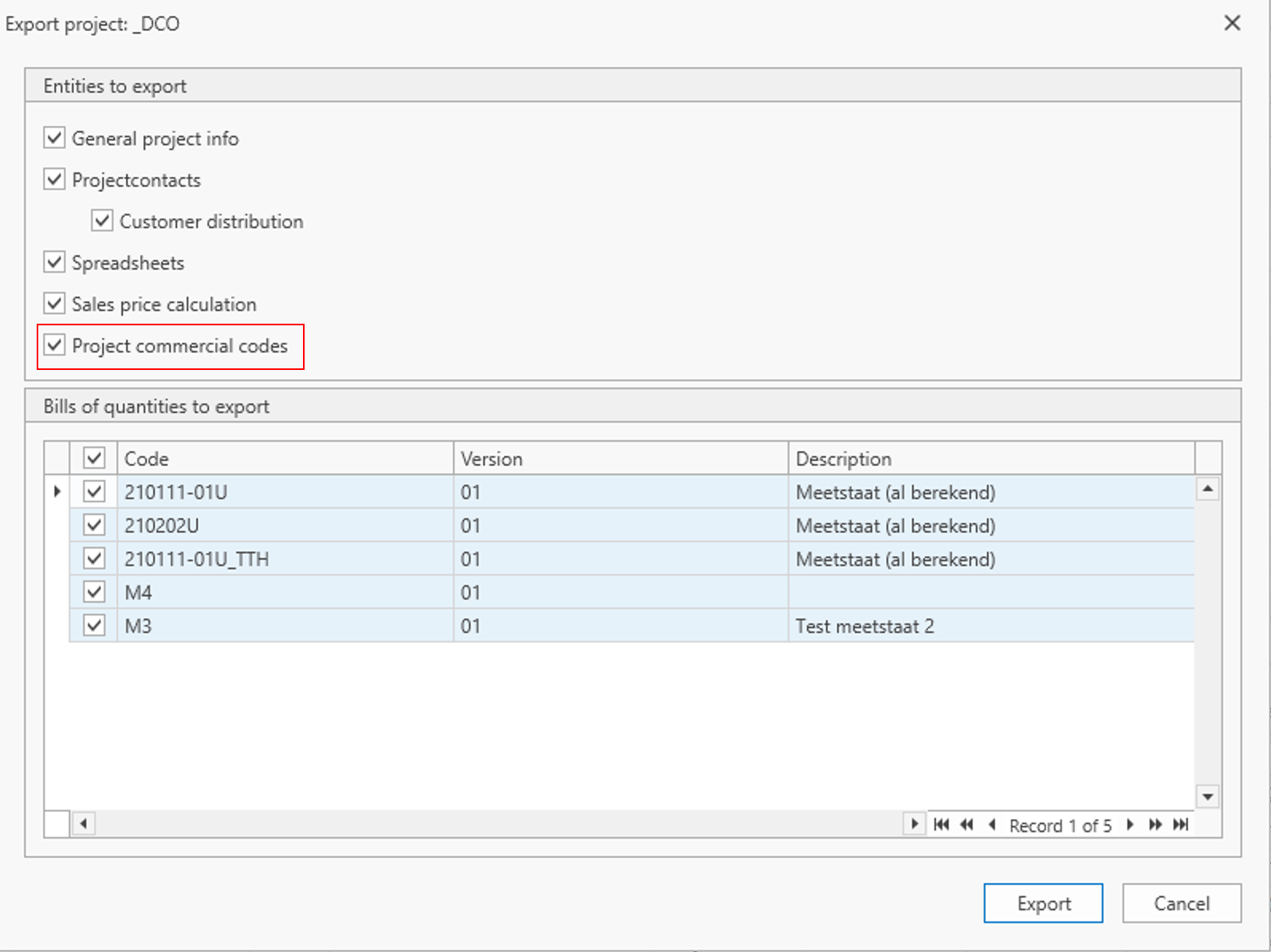
A new checkbox ‘Copy Project Commercial Codes’ has been added to the export screen, next to the existing options, and is ticked by default. When it is ticked, the full list of project commercial codes is exported, including their hierarchy, descriptions in all languages and settings, together with the commercial code and conversion factor of each bill of quantities line. The project type is exported as part of ‘Copy General Project Info’.
Import
When importing the file with Import Project, the project commercial codes from the file are used as the project's commercial codes, and each bill of quantities line is linked to its commercial code again. A new step in the import wizard lets you link the project type to an existing project type in the target company or create a new one.
Updated class descriptions in the tender classification
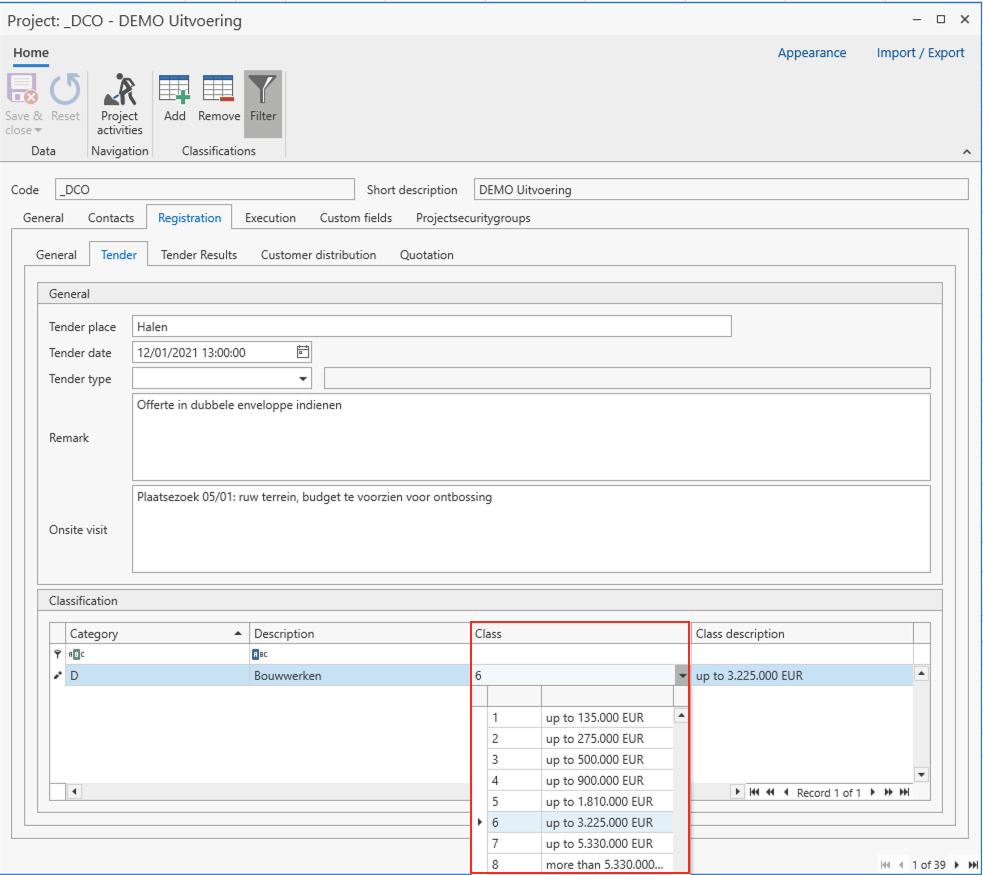
The class descriptions in the project classification have been updated to the new maximum amounts per tender class, so they match the official values currently in force.
CALCULATION
BIM: removed models also disappear from the IFC Viewer
When you remove a model in the BIM data window and save, the model is now also removed from the IFC Viewer. If no other models remain open in the IFC Viewer, the viewer window closes automatically.
PRICE REQUESTS
Generate price requests: resource group, activity and cost type
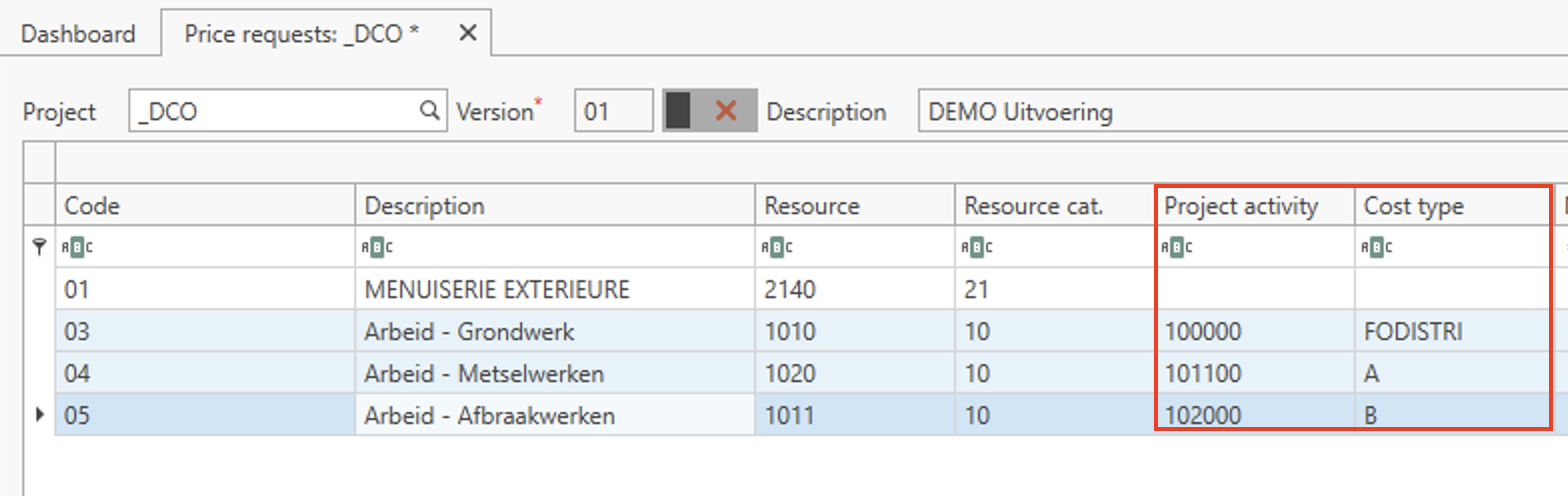
Price requests created with Generate Price Requests are now filled in the same way as price requests you create manually. Besides the resource category and resource code, the resource group, activity and cost type are now also taken from the matching resource in the library. When the generated lines are added to an existing price request, only empty fields are completed; values that are already filled in are never overwritten.
Price request lines with quantity 0: child lines are now transferred
When a price request line has a quantity of 0 and its child lines have a unit cost for a supplier, the unit cost on the price request line is now set to 0. As a result, when you transfer that supplier, all child lines with a unit cost for that supplier are transferred to the calculation, so they are ready as soon as a quantity is entered on the bill of quantities line.
SALES PRICE CALCULATION
Apply revision index: the pop-up remembers your last values
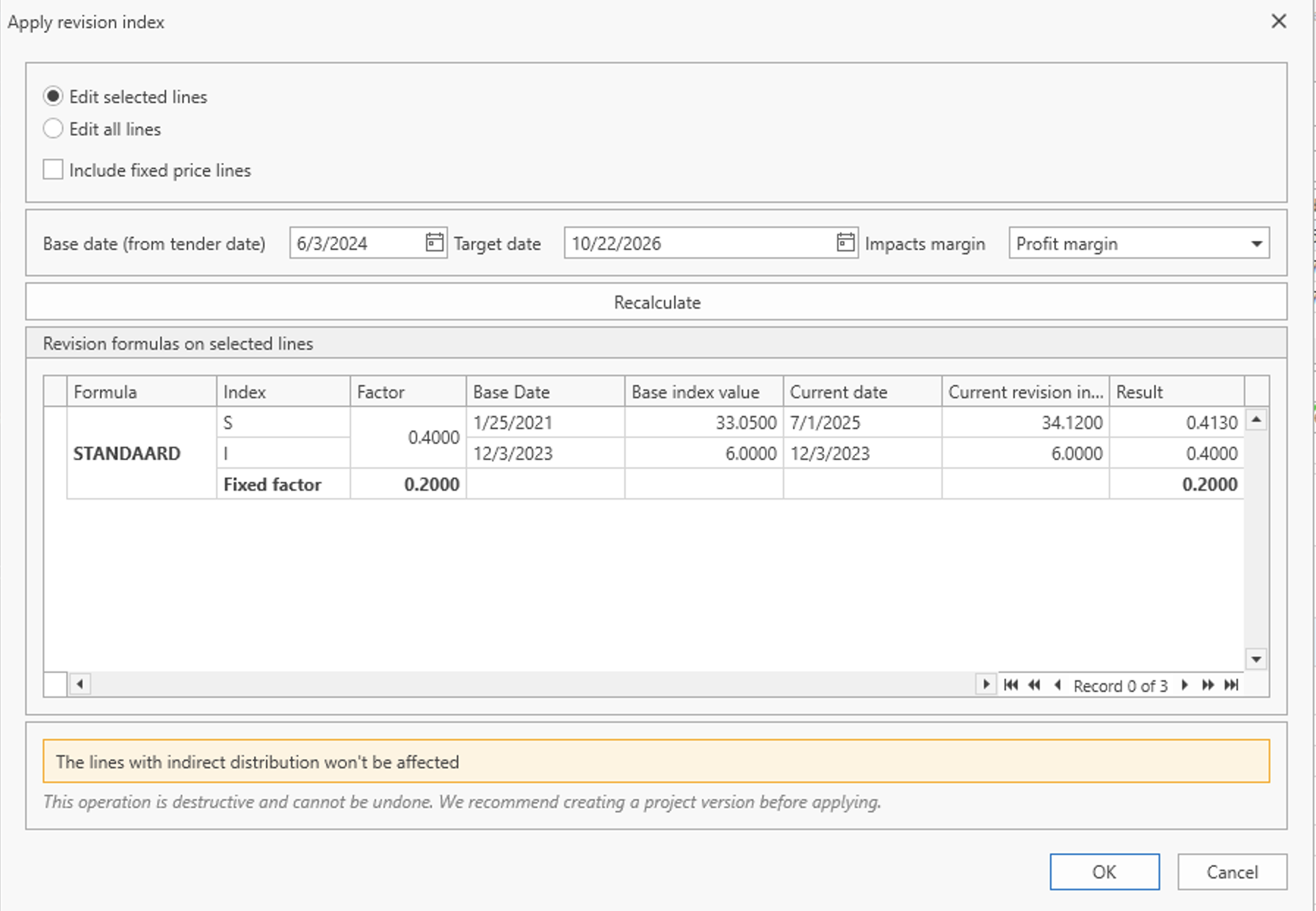
The Apply revision index pop-up in the Sales Price Calculation now saves the values you entered the last time you used it. When you open it again, the previous configuration is restored, so you can see what was applied and easily re-run the calculation with an updated target date.
Excel export with formulas: clearer totals and column widths
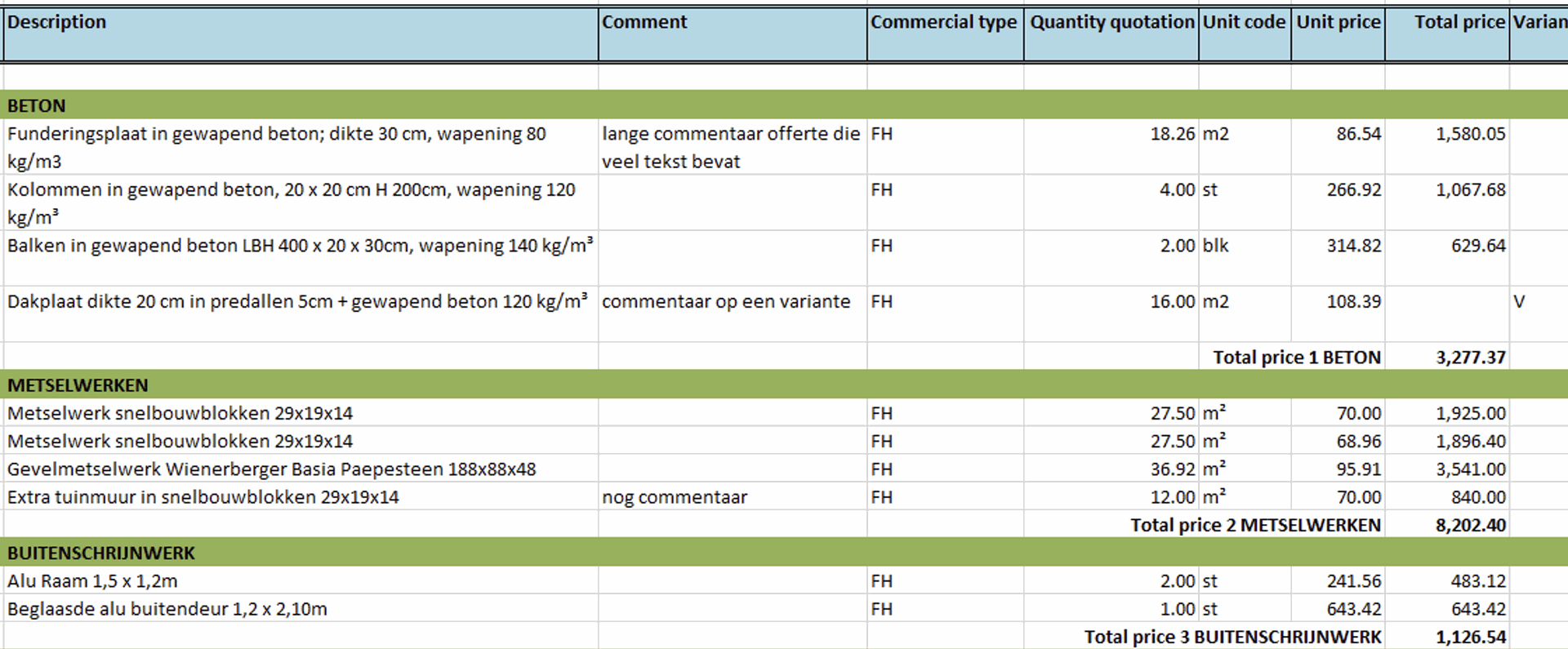
The Excel export with formulas has a clearer layout:
- The ‘Description’ column is now wider by default.
- All subtotals and the grand total in the ‘Total price’ column now use the same formatting.
- Each bill of quantities subtotal is now labelled ‘Total price -’ followed by the name of the bill of quantities, in the same column as the sum line subtotals.
- The ‘Unit price’ column width is now sized to fit the unit prices rather than the subtotal labels.
BOQ RESOURCES
Update with library: confirmation when units differ
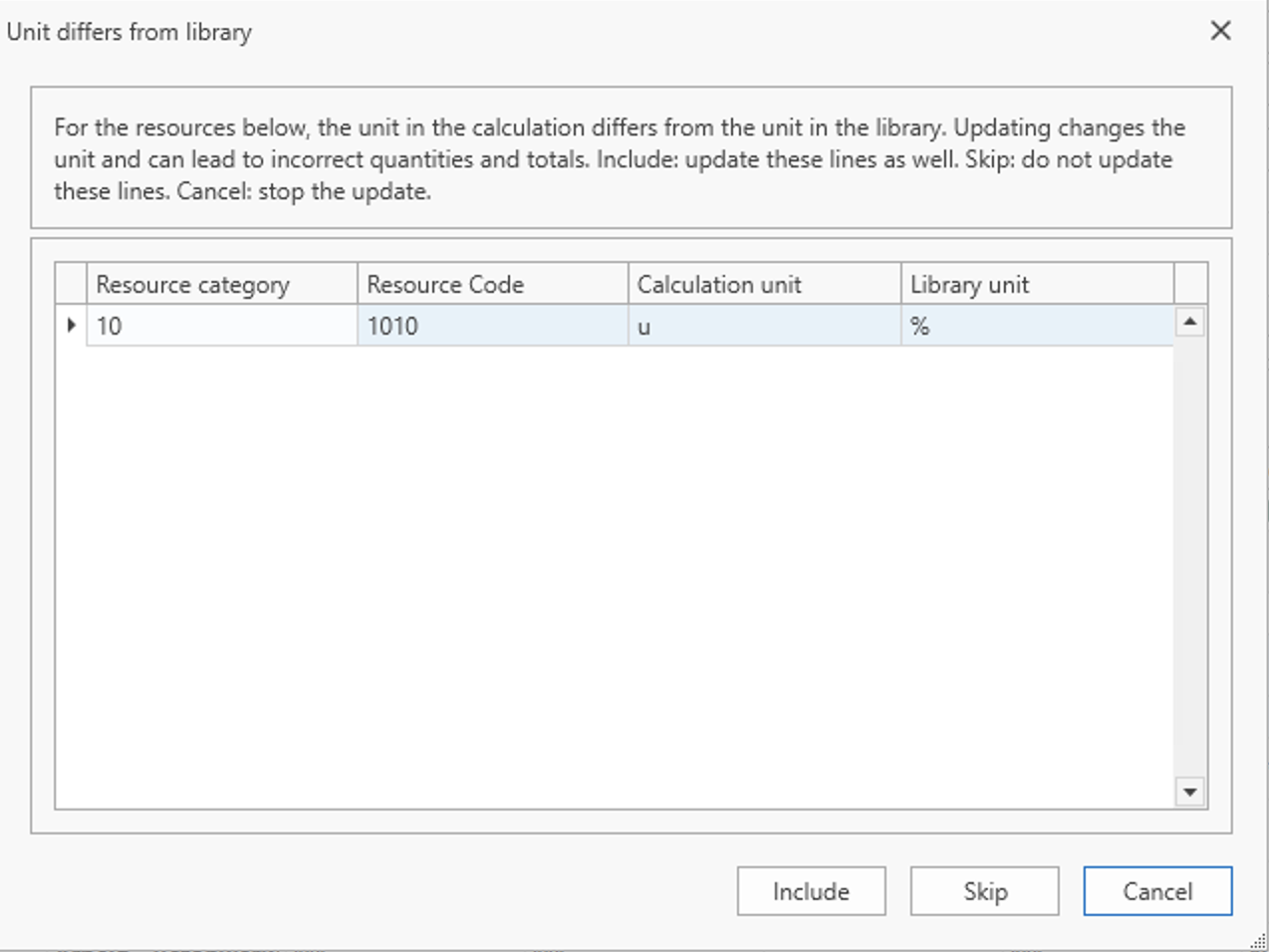
When you use Update with library on the BOQ Resources screen, the application now checks whether the unit of each resource in the calculation matches its unit in the library. This check always takes place, also when the unit is not one of the fields you chose to update. If all units match, the update runs as before. If one or more units differ, a pop-up lists each affected resource with its resource category, resource code, calculation unit and library unit, before anything is changed.
You can then choose to:
Include: update these resources as well, together with all other lines.
Skip: leave these resources unchanged and update all other lines.
Cancel: stop the update; no lines are changed.
This prevents a unit from changing unnoticed, which would affect the quantities and totals in the calculation.
LIBRARIES
Contacts library: Grand Duchy of Luxembourg
In the country list of the Contacts library, Luxembourg is now shown with its official name: ‘Grand Duchy of Luxembourg’.
TOPSHEET
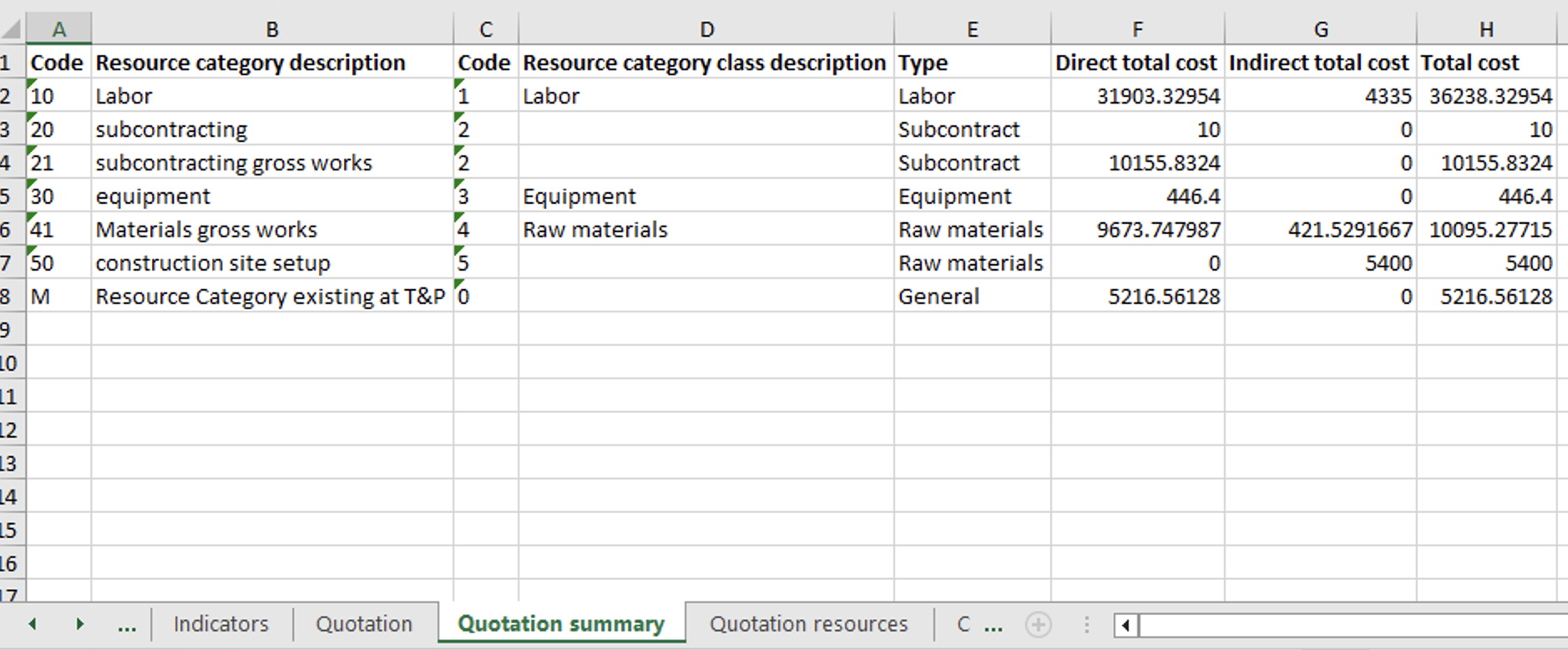
Topsheet Excel export: indirect costs on the ‘Quotation summary’ tab
The ‘Quotation summary’ tab of the Topsheet Excel export now includes indirect costs, so the total on this tab matches the total cost of the quotation. For each resource category, the tab now shows three cost columns: ‘Direct total cost’ (previously ‘Total cost’), ‘Indirect total cost’ and ‘Total cost’, the sum of both. Resource categories that only appear in direct or only in indirect bills of quantities are also listed, with 0 in the other column.
Configurable number of decimals for adjustment and margin percentages
You can now choose how many decimals are used for the percentage of adjustments and margins, up to a maximum of 8. Previously, the Topsheet always showed 4 decimals, while the Adjustments and Margins libraries showed only 2. The new setting ‘Number of decimals for the percentage of adjustments and margins’, in the Topsheet category of the settings, can be set at global level and per company; a company setting overrides the global one. It determines how many decimals are shown and can be entered in the ‘Percentage’ column of the Adjustments and Margins libraries and of the quotation adjustments and margins on the Topsheet screen. The default is 4, so nothing changes unless you adjust the setting. Lowering the number of decimals never rounds or truncates percentages that are already saved. The change applies the next time you open the screen.
PROGRESS REPORTS
Refresh index values from the library
Index values are often not yet published when you create periods for progress reports. It is now possible to update existing periods with the latest index dates and values from the library, without recreating periods or revision formulas. Only periods with status ‘In Preparation’ are updated.
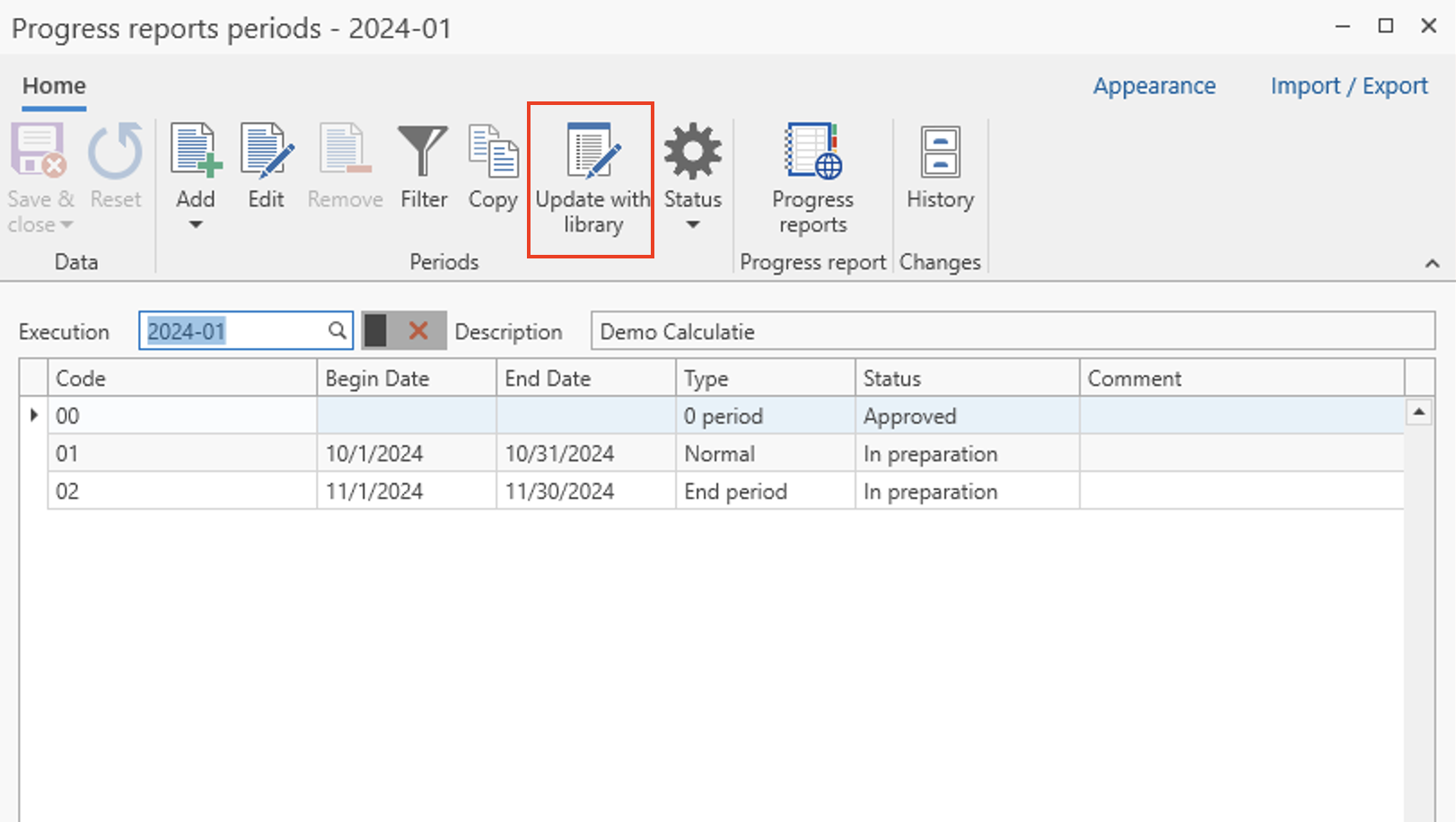
From the Periods screen
Select one or more periods and click the new ‘Update with Library’ button. A screen opens showing the revision formulas and index values of the selected periods; select the lines you want to update and confirm. The revision index dates and values are then taken from the library.
From the revision formulas library
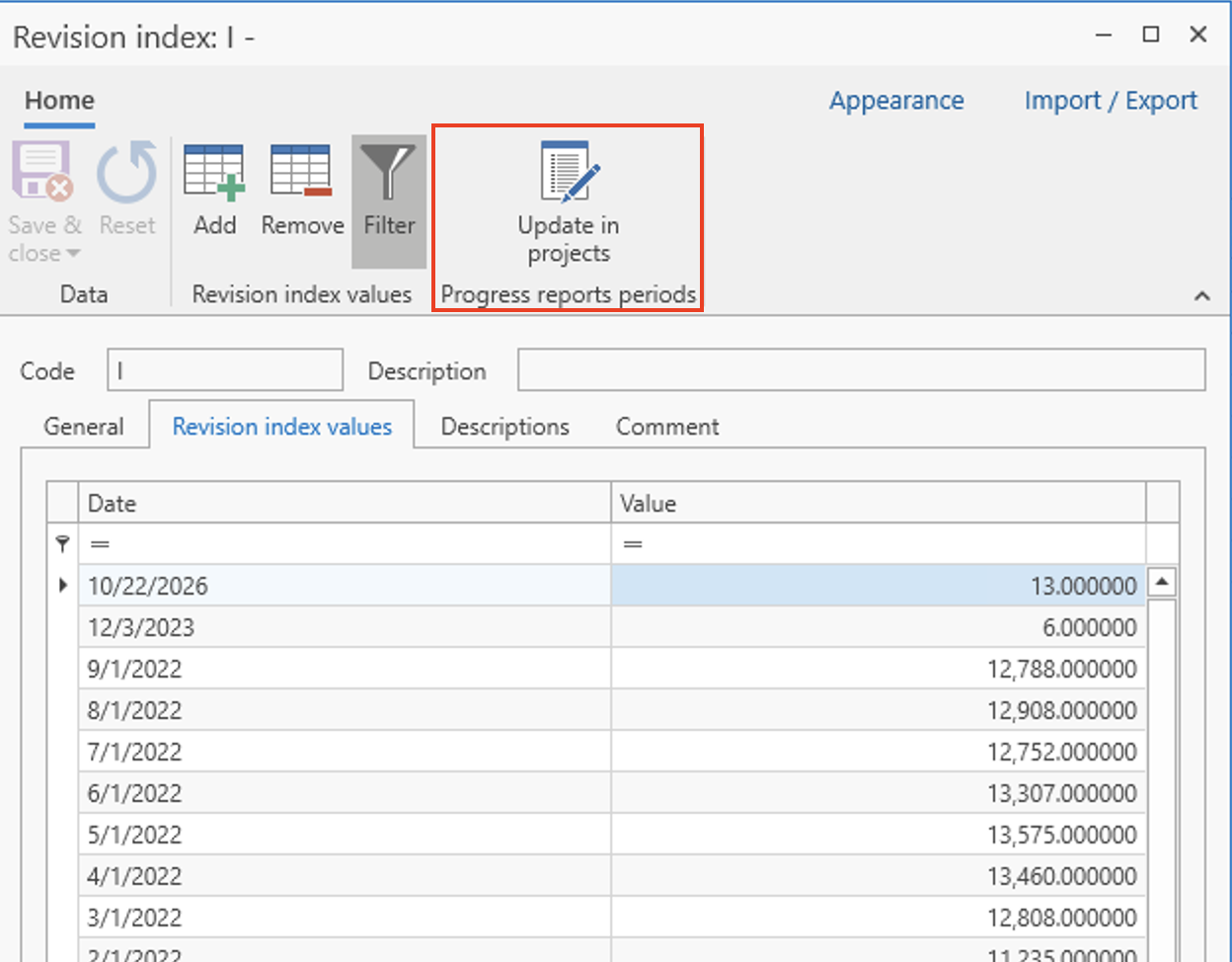
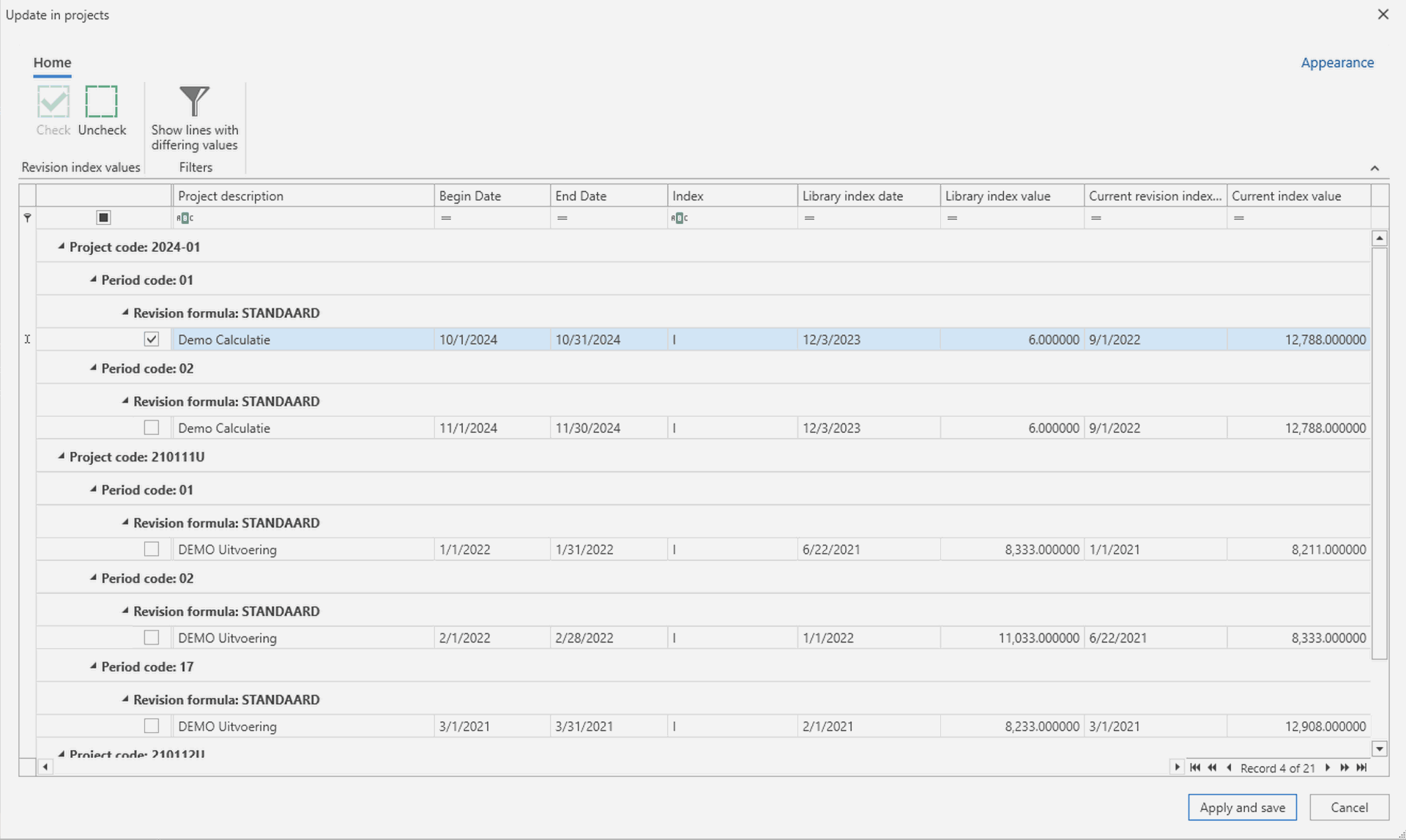
On the ‘Revision index values’ tab of the project revision formulas library, a new ‘Update in Projects’ button opens an overview of all projects that use revision formulas and have periods in preparation. For each line, the overview shows the project, the period, the revision formula and index, and both the library index date and value and the current ones. Use ‘Check all’ or ‘Uncheck all’, or the filter ‘Show lines with differing values’ to see only the lines where the library value differs from the project value. Click ‘Apply and Save’ to update the selected lines.