Release Notes vNext 2026.12
All the new changes - September 2026
GENERAL
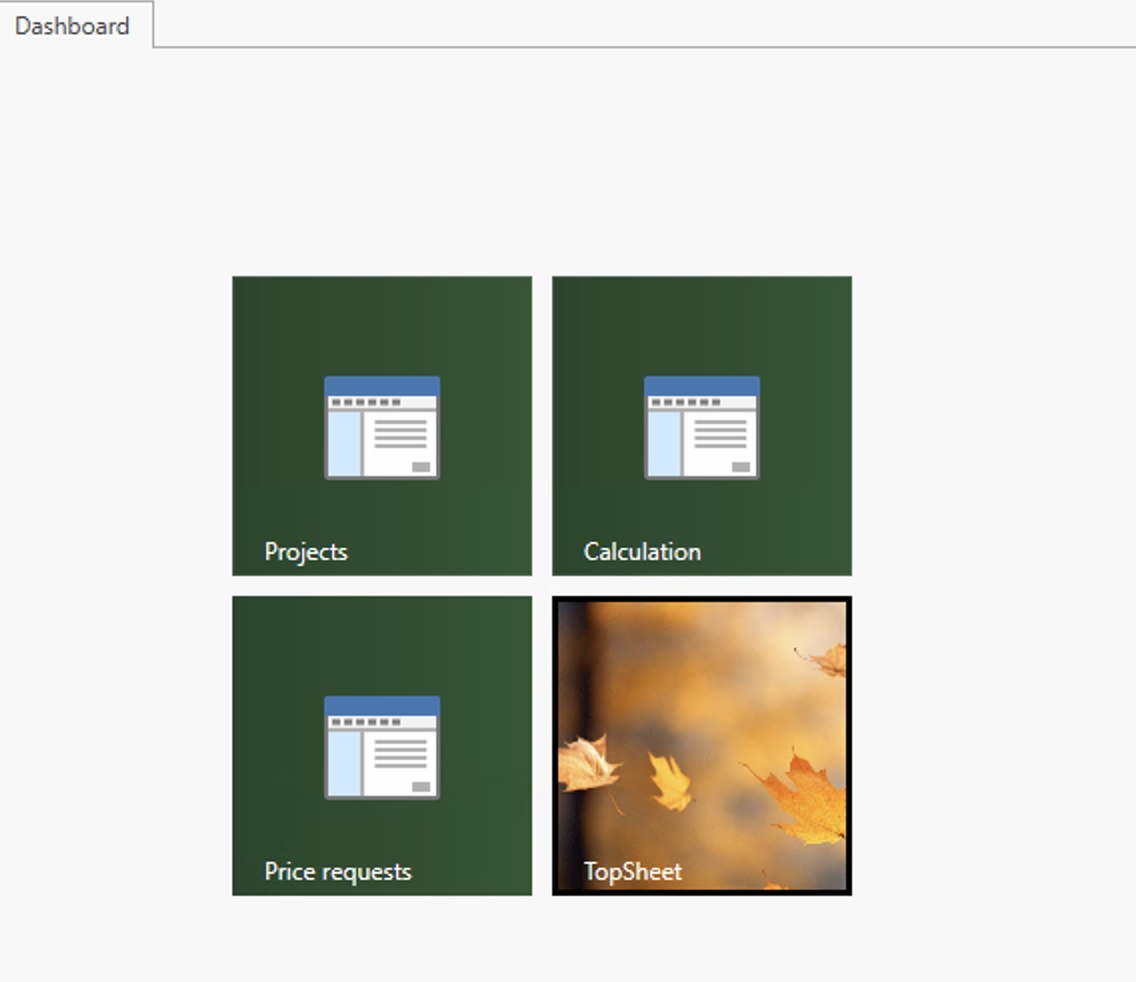
Dashboard: updated to the new Aceve look
The Dashboard's background and default tile colors have been updated to match the new Aceve visual identity — a palette of green tones. Tiles that still had the previous default blue color have been automatically updated to the new default green; tiles that were customized to a different color are left unchanged. As before, the color of each tile can still be adjusted individually via its customization panel.
Reports: remember your last-used criteria
When opening a report, the criteria fields are now automatically pre-filled with the values you used the last time you ran that report. If you have not used the report before, the most recently saved value for your company is used instead, or the field opens empty. Once you confirm the report dialog, your choices are saved automatically for next time — no extra action is needed.
Add release screenshot Paste the feature screenshot here, then delete this note. |
CALCULATION
New shortcut: Alt+Arrow to change calculation line level
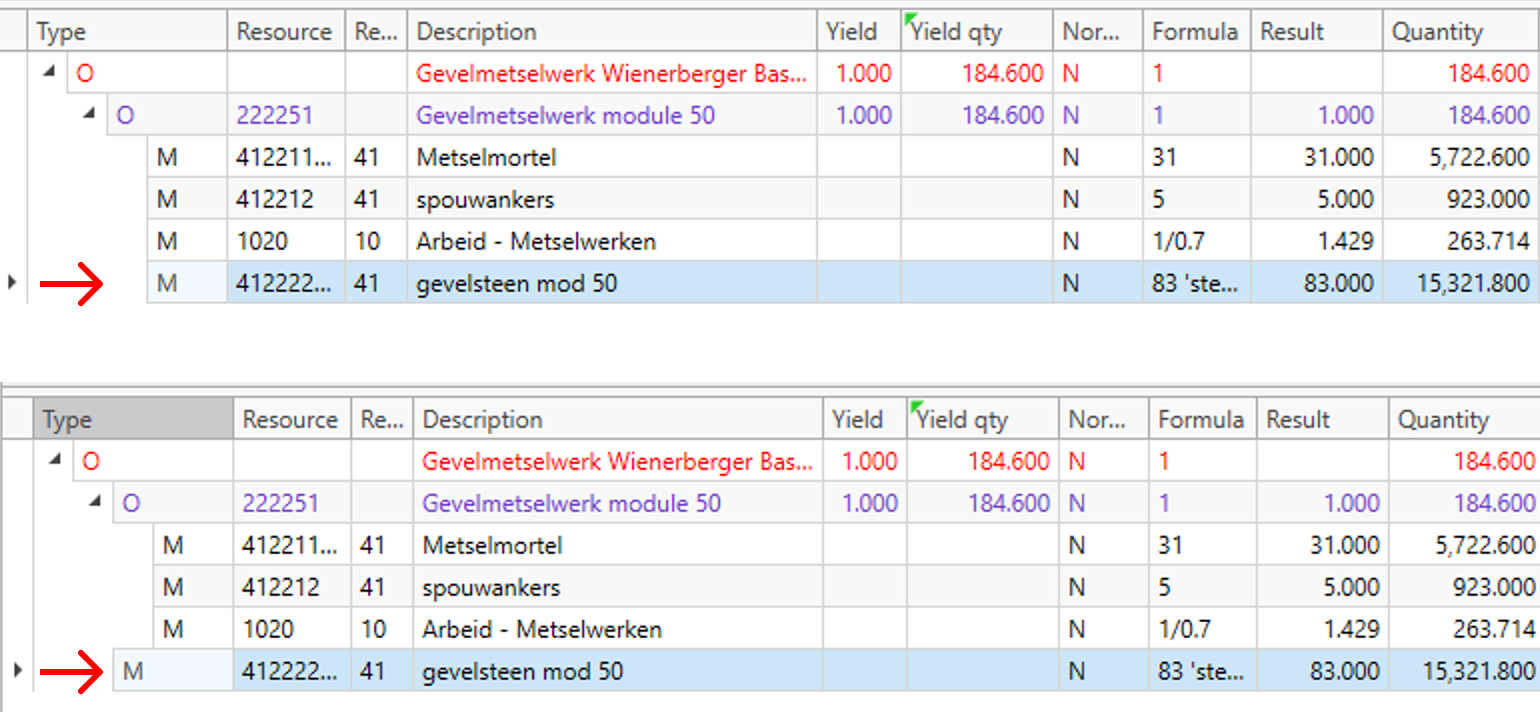
The level of a selected calculation line can now be changed directly from the keyboard. Alt+Up (Option + Up for iOS users) moves the line out of its parent operation, promoting it one level; Alt+Down (Option + Up for iOS users) moves it into the operation directly above, nesting it one level deeper. This offers a faster alternative to dragging when restructuring a calculation.
On the screenshot below, using Alt+Up the last Reourse line was moved out from parent O-line, and became the same level as O-line “Gevelmetselwerk module 50”
LIBRARIES
Contact library sync: clearer error messages
When something is wrong with a contact person during contact library synchronization, the error message now also includes the name of the company that contact belongs to. This makes it much easier to locate and correct the affected contact.
Companies library: copy an existing company
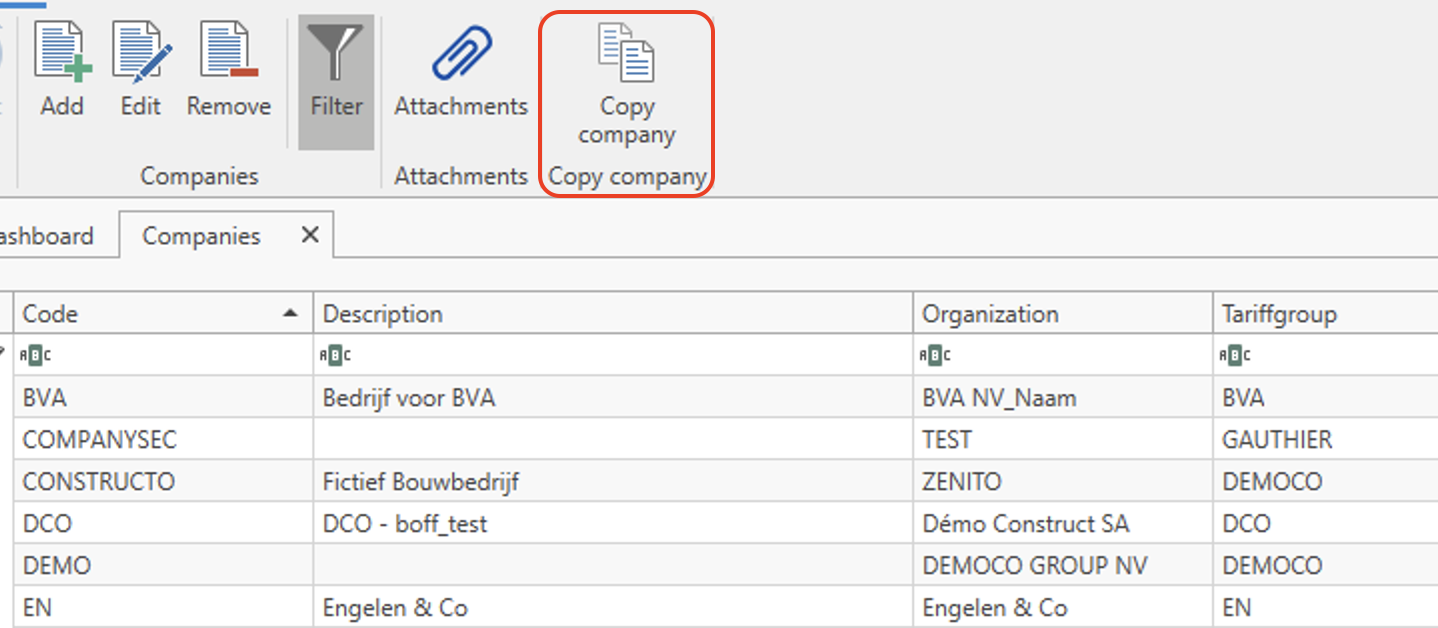
A new Copy Company button has been added to the Companies library, working the same way as the existing project copy feature. It is now possible to create a new company as a copy of an existing one, without having to set up all settings and library data from scratch.
Selecting source and destination
You select the source company to copy from; its description is shown for confirmation. You then enter the code and description for the new company.
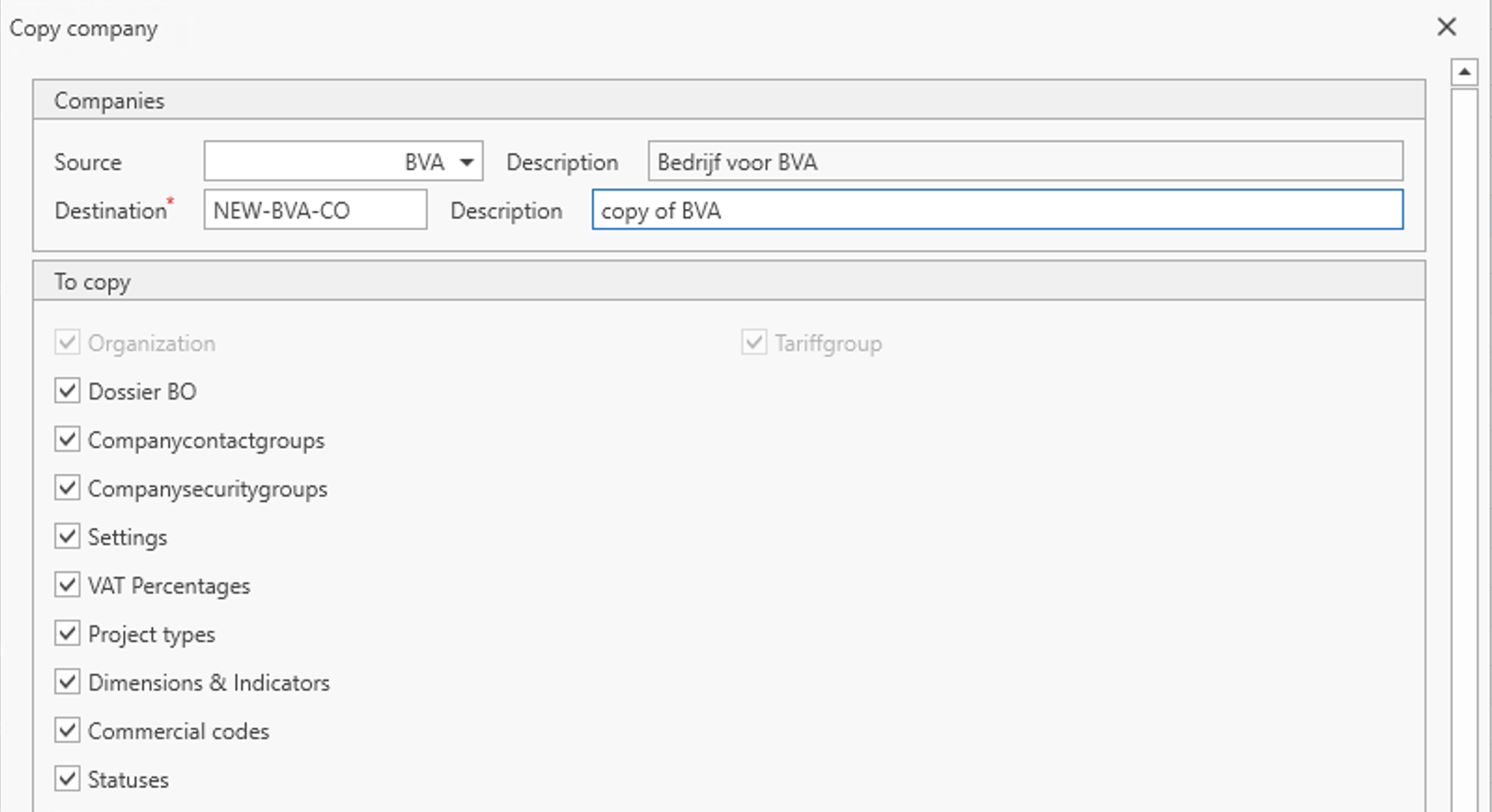
Choosing what to copy
Organisation and tariff group are always copied from the source company. A set of checkboxes lets you choose whether to also copy the source company's Dossier BO, contact groups, security groups, and settings — or start with those blank or inherited from the global defaults. The same checkboxes control whether library data such as project statuses, project types, tender types, VAT percentages, marking codes, variant types, dimensions & indicators, Topsheet adjustments & margins, commercial codes, and revision formulas is copied from the source company.
After a copy you will see a positive confirmation message. [fill in the screenshot]
PRICE COMPARISON
Quotation report: layout and readability improvements
The default Quotation report has received several layout improvements. Pages with no content are no longer printed, and all tables now use a consistent, more readable font size throughout the report. In the summary section, chapters and sub-chapters are now indented to clearly show the document's structure. In the header, the page number and date are shown slightly smaller, and the date now consistently reflects the quotation's send date.