Release Notes vNext 2026.13
All the new changes - September 2026
GENERAL
Import templates: manage, filter by type and set a default
Many import screens let you save your column mapping as a reusable template so you don't have to map the same columns again for every import. With this release, those templates can be managed in the same way as other data in Tendering. You can see the full list, rename or delete templates, keep the templates for each screen separate, and choose a default. This keeps the template list short and relevant and makes a repeated import faster.
Managing templates
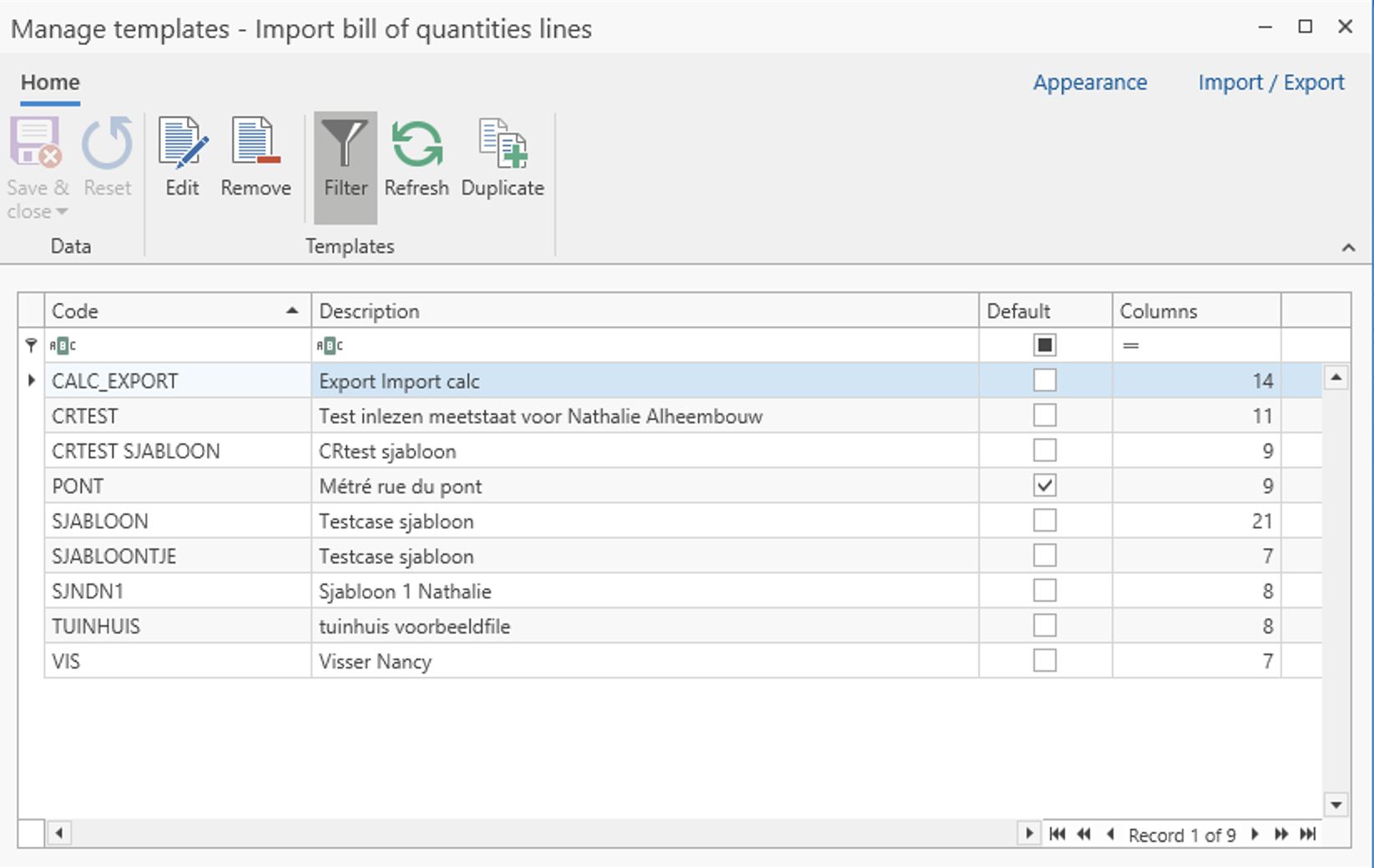
 A new Manage Templates button has been added next to Save as Template and Select Template on every Excel import screen: Activities, Articles, Resources, Resource Categories, Resource Groups, Commercial Types, Units, Contacts and Bill of Quantities lines. The button opens a grid of all your templates with the columns Code, Description, Template Type and Default. Created and modified date and user can be added via the column chooser. In this grid you can edit a template's code and description, or delete old templates you no longer need. New templates are still created with Save as Template from the import screen.
Templates per type
Each template is now linked to the type of screen it was saved from. Select Template only shows the templates that belong to the current screen, so you don’t need to search one long list for the right template. Existing templates were given a type automatically, based on their column mapping. If a template doesn't show up where you expect it, contact the KPD helpline at help@kpd.be. We'll assign its type for you.
Default template
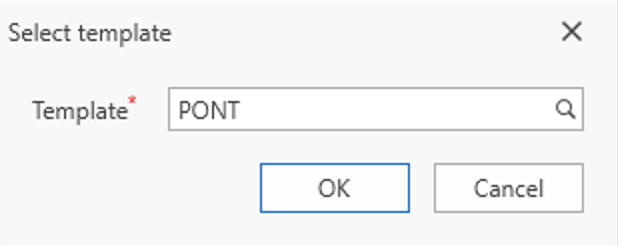
In Manage Templates, you can mark one template per type as the default, and it will be pre-selected when you open Select Template.
PROJECTS
Copy a project to another company
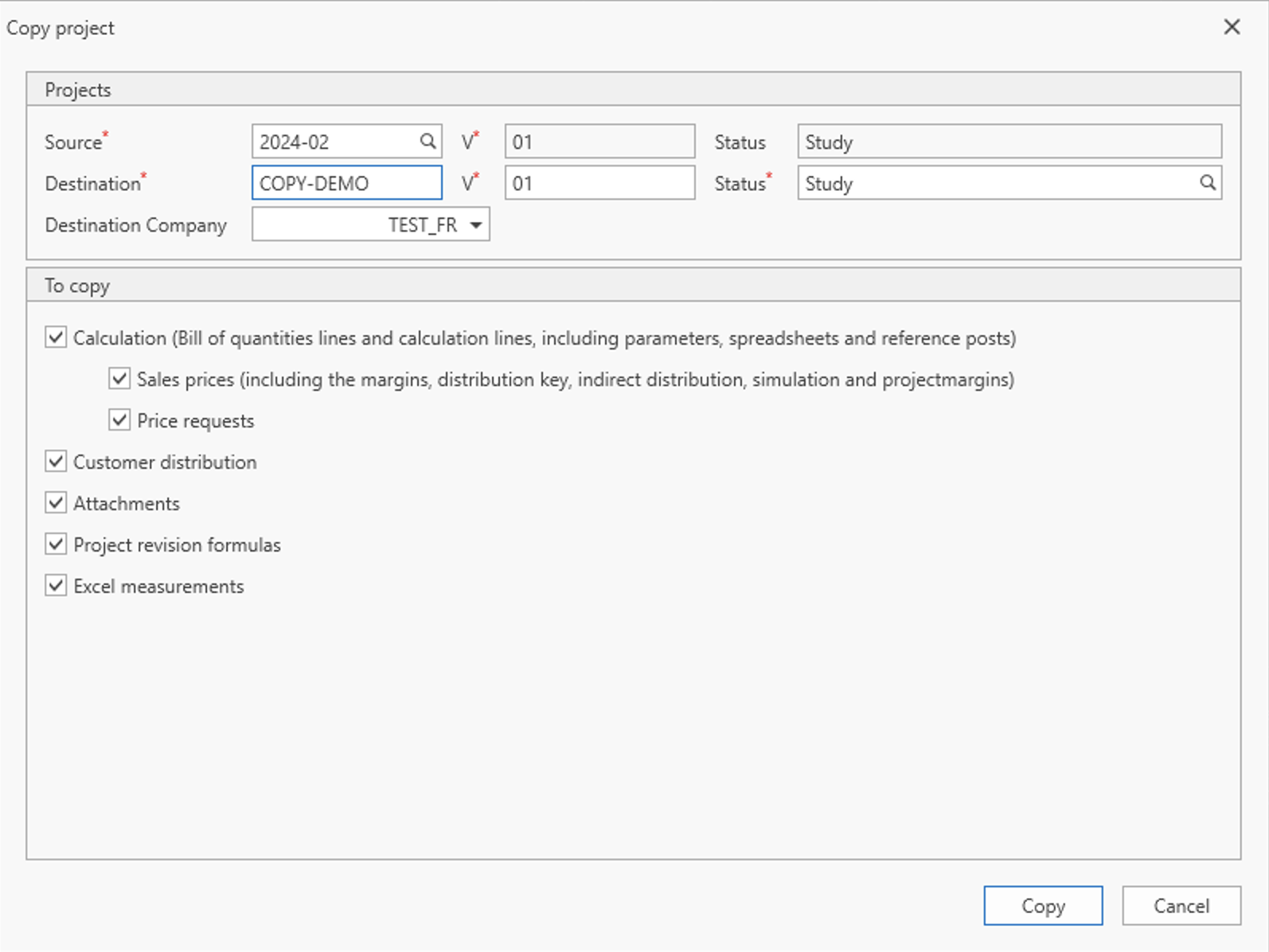
A project can now be copied to another company, as long as both companies use the same tariff group. To copy a project, simply select a project and click a button Copy Project in the ribbon.

The Copy Project dialog has a new Destination Company field, which is set to the current company by default. Its list shows only the companies that share the project's tariff group. When you choose another company, the code, version and status are filled in using that company's settings. The copy options work the same as before.
Some data is specific to each company, such as variant types, margins and VAT. For that data, a wizard guides you through the matching, the same one used when importing a project from a .kpd file. Marking codes are matched on their code. If the destination company has no matching code, the field is left empty.
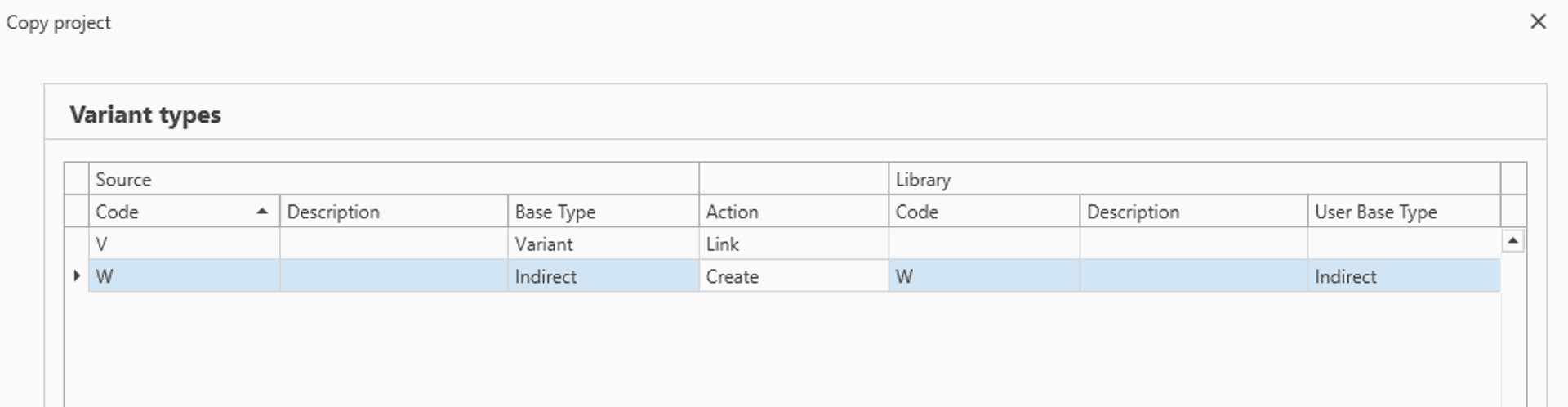
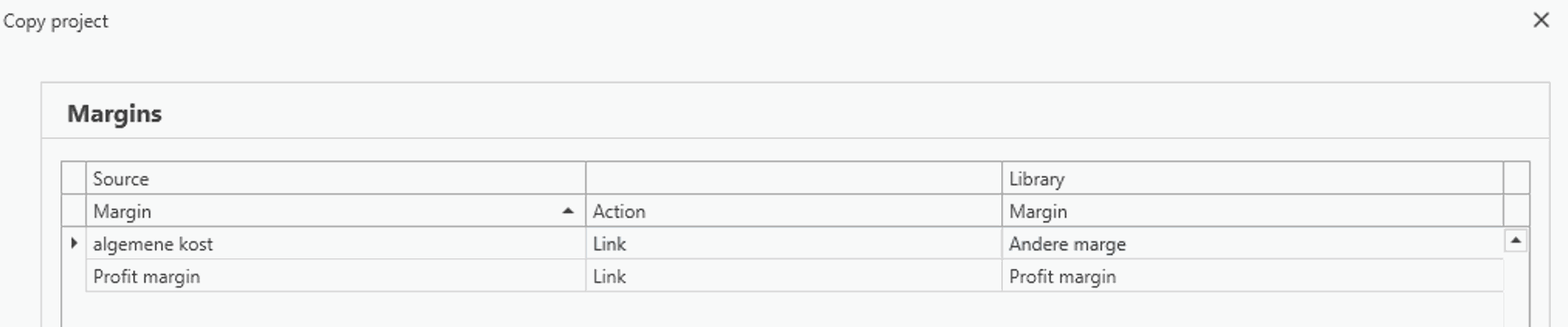

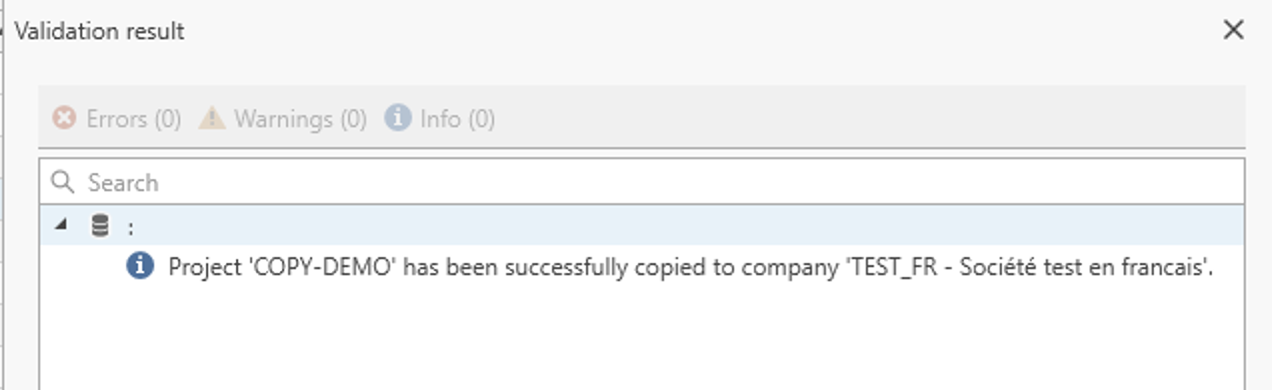
In the end you will see a successful validation message:
Deleting projects and bills of quantities: clearer confirmations
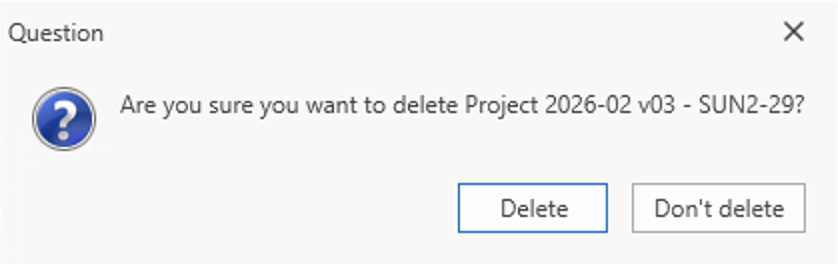
The delete confirmations now show exactly what you are deleting. When you delete a project version, the step where you enter the code also shows the version number. When you delete a bill of quantities, both confirmation windows show the project code and version in their title, together with the code and description of the bill of quantities.
Project delete new message:
Bill of quantities new message: 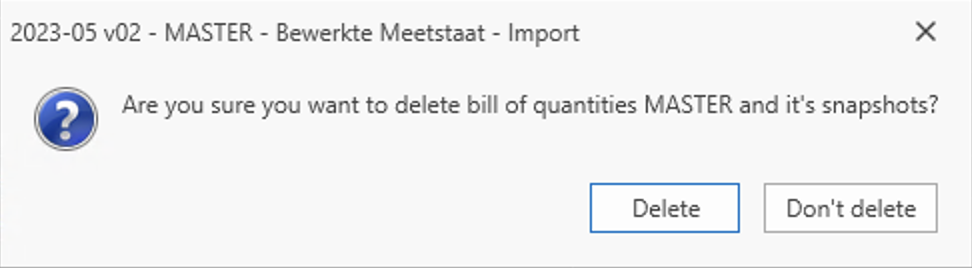
CALCULATION
Base line and reference line values highlighted
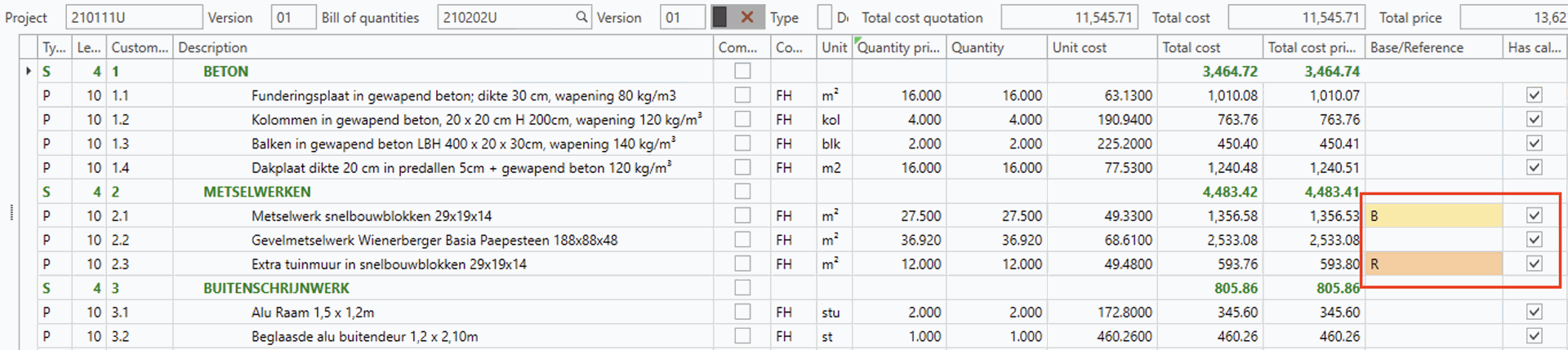
Base lines and reference lines have a special role in a calculation. To make them easier to spot while you work, the columns ‘Base/Reference’ and ‘Ref. Base post’ on the Calculation screen are now highlighted in colour: yellow for a base line and orange for a reference line. This lets you see them at a glance, even in a large bill of quantities. The highlighting is always on and stays visible on lines that have a marking code. Excel exports and reports are unchanged.
PRICE REQUESTS
Copy and paste child lines
In a price request, you can now copy child lines (M-lines) and paste them under another parent line (O-line). Select the lines and copy them with Ctrl+C. Then select the parent line and paste with Ctrl+V. The lines are added after any existing child lines. If you copy an O-line, its child lines are copied with it. Changes you haven't saved yet are included in the copy.
With Paste Special (Ctrl+Shift+V), you choose whether the lines are pasted as child lines, or before or after the selected line. You can paste only when an M-line or O-line is selected.
Uniform lookup fields with search
In the price request overview and detail screens, the Resource Group and Cost Type fields now use the same lookup as Resource, Resource Category and Activity. All five fields now open a lookup with the magnifying glass, so you can search for the value you need.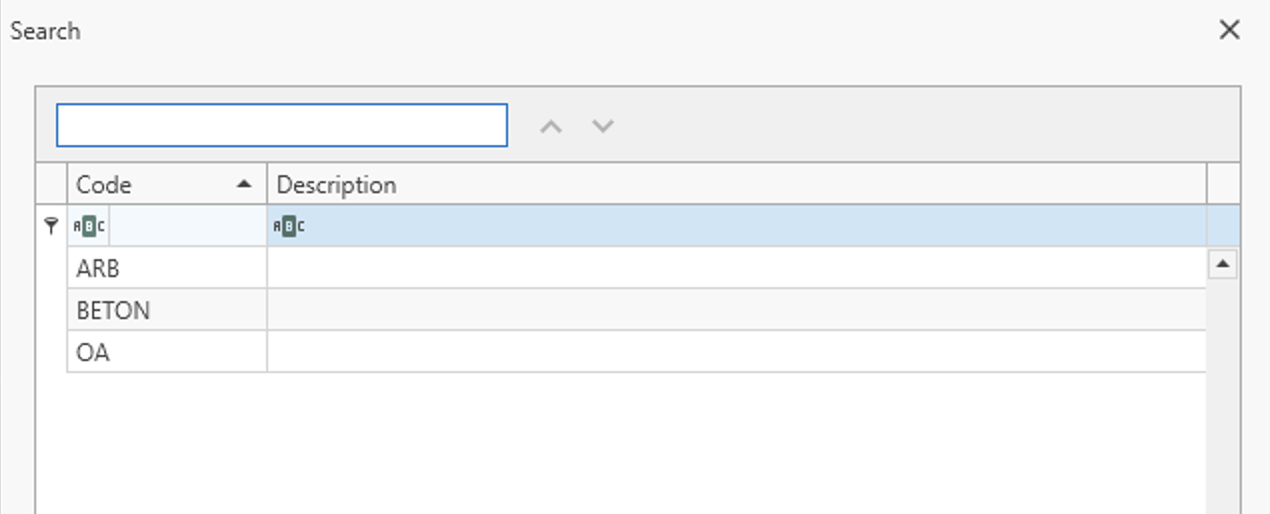
SALES PRICE CALCULATION
New List view for sorting
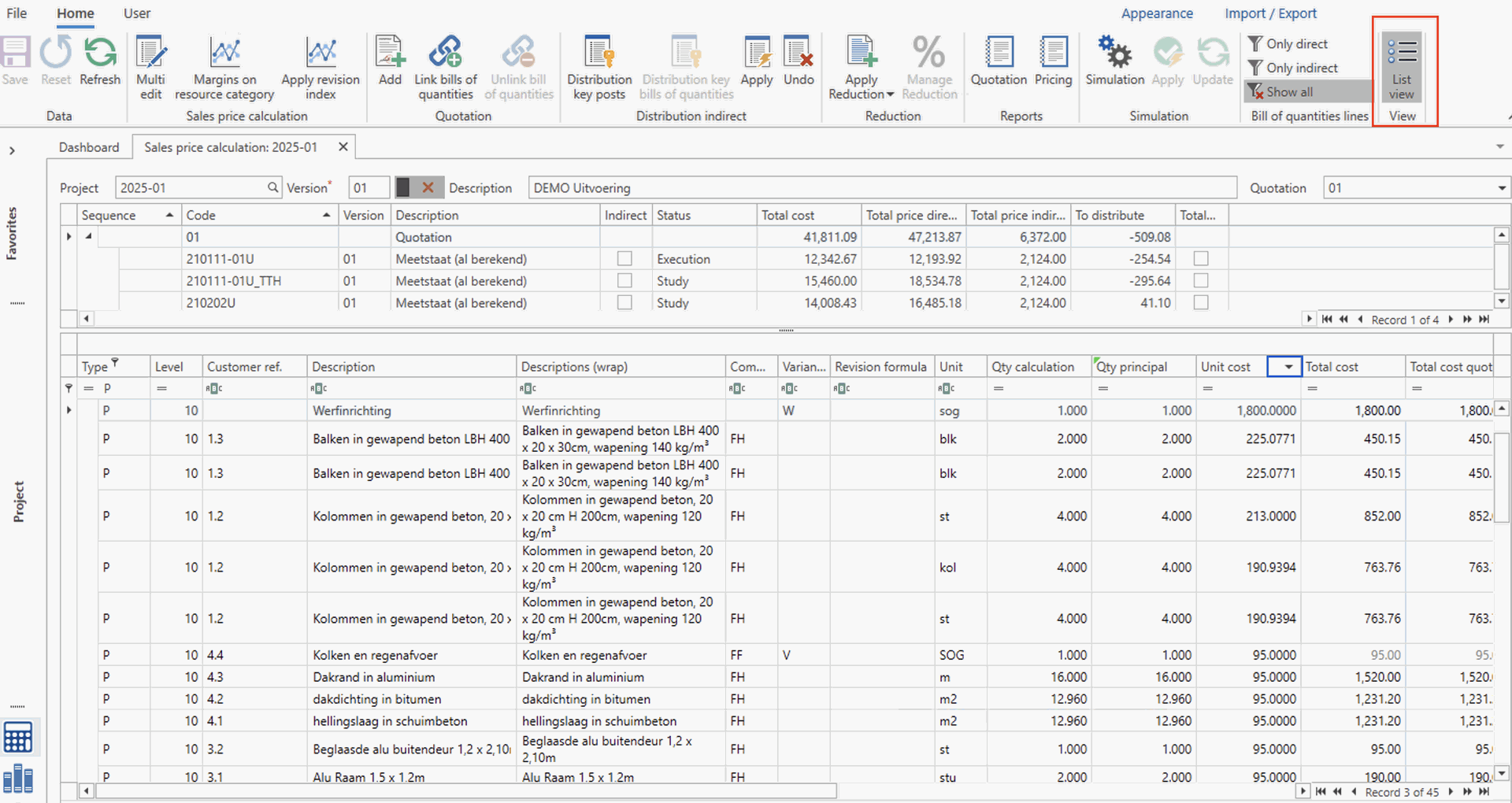
The Sales Price Calculation screen shows the bill of quantities as a tree view, where sum lines can be collapsed to show or hide the underlying lines. This keeps the structure of the quotation clear, but it means lines can only be sorted within their own chapter. To sort lines across the whole bill of quantities, for example by margin, cost price or sales price, you can now switch the screen to a List view.

In List view, the same lines and columns are shown as one flat list, just like on the Calculation screen. Click any column header to sort the entire bill of quantities on that column. Sum lines are included in the sort, so they can appear anywhere in the list. The List view only changes how the lines are displayed. Line numbering, the order of the bill of quantities, totals and the quotation report stay the same. Switch back to the tree view at any time to return to the normal structure.
BOQ RESOURCES
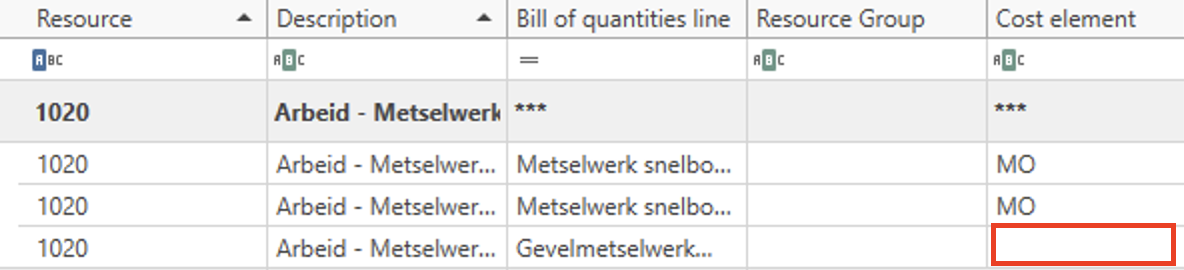
Removing a cost element
On the BOQ Resources screen, you can now remove a cost element from a resource, as well as assign or change one. The Cost element field works the same way as on the Calculation screen, so a single click with Delete clears it.
LIBRARIES
Commercial codes library: see where a code is in use
If a commercial code is still linked to bill of quantities lines, you can't delete it. The message you see when you try now lists the projects that use the code, so you can go straight to them and filter on it.